> ## Documentation Index
> Fetch the complete documentation index at: https://specterops-bed-7559-api-key-exp.mintlify.site/llms.txt
> Use this file to discover all available pages before exploring further.
# Configure API Key Expiration
> Learn how to configure API key expiration in BloodHound to enhance security and meet compliance requirements.
 API key expiration controls how long API tokens remain valid. Use API key expiration to reduce long-lived credentials and support internal security and compliance requirements.
API key expiration applies to the following:
| API token type | Description |
| ------------------------------------------------------------------------------------------------ | ---------------------------------------------------------------------- |
| [Personal API tokens](/integrations/bloodhound-api/working-with-api#personal-api-tokens) | Created by individual users for API access. |
| [Non-personal API tokens](/integrations/bloodhound-api/working-with-api#non-personal-api-tokens) | Created for integrations such as Splunk, ServiceNow, and Cortex XSOAR. |
| [Collector client API tokens](/collect-data/enterprise-collection/create-collector) | Created for AzureHound, SharpHound, and OpenHound data collectors. |
## Before you begin
This is a SpecterOps-managed feature. If it is not enabled in your environment, contact your account team for assistance.
Before configuring API key expiration, consider the following:
* API key expiration is not enabled by default and must be turned on by a user with the **Administrator** role in BloodHound.
* Only users with the **Administrator** role can configure API key expiration.
* After enabling API key expiration, **all** existing and new API keys will be set to expire based on the configured rotation period.
* BloodHound does not send API key expiration notifications.
* Organizations should plan manual key rotation and internal expiration notifications for all integrations and collector clients before changing this setting.
## Configure
The following table summarizes how API key expiration settings and actions affect API tokens:
| Setting or action | Behavior |
| ----------------------- | -------------------------------------------------------------------------------------------------------------------------------------------------------------------------------------------- |
| Feature enabled | Existing and new tokens expire according to the current default or custom rotation period. |
| Default rotation period | Tokens expire after 90 days by default. |
| Custom rotation period | Tokens expire after the configured number of days (between 1 and 365). |
| Rotation period changes | Tokens that expire sooner than the new period keep their current expiration date. Tokens that expire later are reset to expire after the new period, starting from when you save the change. |
| Feature disabled | Expiration enforcement stops immediately, expiration dates are cleared, and tokens no longer expire. |
To enable and configure API key expiration:
1. Log in to BloodHound as a user with the **Administrator** role.
2. In the left menu, click **Administration** > **BloodHound Configuration**.
Toggle the setting for API key expiration.
API key expiration controls how long API tokens remain valid. Use API key expiration to reduce long-lived credentials and support internal security and compliance requirements.
API key expiration applies to the following:
| API token type | Description |
| ------------------------------------------------------------------------------------------------ | ---------------------------------------------------------------------- |
| [Personal API tokens](/integrations/bloodhound-api/working-with-api#personal-api-tokens) | Created by individual users for API access. |
| [Non-personal API tokens](/integrations/bloodhound-api/working-with-api#non-personal-api-tokens) | Created for integrations such as Splunk, ServiceNow, and Cortex XSOAR. |
| [Collector client API tokens](/collect-data/enterprise-collection/create-collector) | Created for AzureHound, SharpHound, and OpenHound data collectors. |
## Before you begin
This is a SpecterOps-managed feature. If it is not enabled in your environment, contact your account team for assistance.
Before configuring API key expiration, consider the following:
* API key expiration is not enabled by default and must be turned on by a user with the **Administrator** role in BloodHound.
* Only users with the **Administrator** role can configure API key expiration.
* After enabling API key expiration, **all** existing and new API keys will be set to expire based on the configured rotation period.
* BloodHound does not send API key expiration notifications.
* Organizations should plan manual key rotation and internal expiration notifications for all integrations and collector clients before changing this setting.
## Configure
The following table summarizes how API key expiration settings and actions affect API tokens:
| Setting or action | Behavior |
| ----------------------- | -------------------------------------------------------------------------------------------------------------------------------------------------------------------------------------------- |
| Feature enabled | Existing and new tokens expire according to the current default or custom rotation period. |
| Default rotation period | Tokens expire after 90 days by default. |
| Custom rotation period | Tokens expire after the configured number of days (between 1 and 365). |
| Rotation period changes | Tokens that expire sooner than the new period keep their current expiration date. Tokens that expire later are reset to expire after the new period, starting from when you save the change. |
| Feature disabled | Expiration enforcement stops immediately, expiration dates are cleared, and tokens no longer expire. |
To enable and configure API key expiration:
1. Log in to BloodHound as a user with the **Administrator** role.
2. In the left menu, click **Administration** > **BloodHound Configuration**.
Toggle the setting for API key expiration.
 Enter the number of days (between 1 and 365) for API keys to remain valid.
This value applies to existing and new keys.
Click **Save Settings** and confirm the modal that appears, which explains how existing keys will be affected by this change.
## Rotate keys
After API key expiration is enabled, Administrators must manually rotate keys before they expire to maintain uninterrupted access to the BloodHound API. This involves regenerating API tokens and updating any integrations or collector clients that use the expiring keys with the new credentials.
Administrators can monitor expiration dates in the **Manage Clients** page for collector clients and in the **API Key Management** page for personal and non-personal API tokens.
We recommend setting external reminders so keys are rotated before they expire and to avoid service interruption.
### Personal/non-personal API tokens
Administrators can rotate personal and non-personal API tokens for all users from the **Manage Users** page.
Users can also rotate their own personal API tokens from the **API Key Management** page in their profile settings.
1. Log in to your BloodHound tenant as a user with the **Administrator** role.
2. In the left menu, click **Administration** > **Manage Users**.
1. Find the user account associated with the expiring API token.
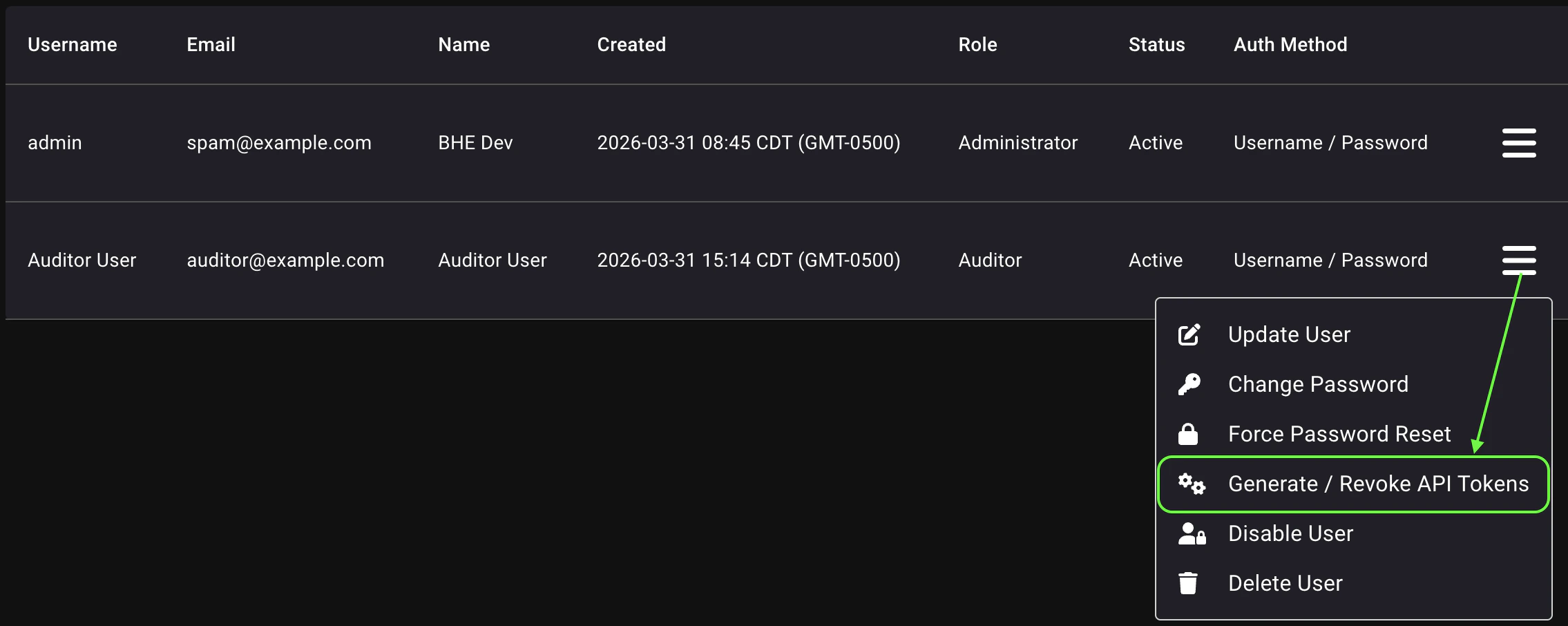
2. Click the hamburger menu and select **Generate / Revoke API Tokens**.
Enter the number of days (between 1 and 365) for API keys to remain valid.
This value applies to existing and new keys.
Click **Save Settings** and confirm the modal that appears, which explains how existing keys will be affected by this change.
## Rotate keys
After API key expiration is enabled, Administrators must manually rotate keys before they expire to maintain uninterrupted access to the BloodHound API. This involves regenerating API tokens and updating any integrations or collector clients that use the expiring keys with the new credentials.
Administrators can monitor expiration dates in the **Manage Clients** page for collector clients and in the **API Key Management** page for personal and non-personal API tokens.
We recommend setting external reminders so keys are rotated before they expire and to avoid service interruption.
### Personal/non-personal API tokens
Administrators can rotate personal and non-personal API tokens for all users from the **Manage Users** page.
Users can also rotate their own personal API tokens from the **API Key Management** page in their profile settings.
1. Log in to your BloodHound tenant as a user with the **Administrator** role.
2. In the left menu, click **Administration** > **Manage Users**.
1. Find the user account associated with the expiring API token.
2. Click the hamburger menu and select **Generate / Revoke API Tokens**.
 3. Click **Create Token**, give it a descriptive name, and click **Save**.
4. Save the API token and token ID in a secure location (for example, a secrets manager or enterprise password vault) and click **Close**.
Do not store these values in cleartext files.
5. Update the dependent integration configuration with the new API token and token ID.
### Collector client API tokens
Administrators can rotate API tokens for collector clients from the **Manage Clients** page.
1. Log in to your BloodHound tenant as a user with the **Administrator** role.
2. In the left menu, click **Administration** > **Manage Clients**.
1. Find the collector client associated with the expiring API token.
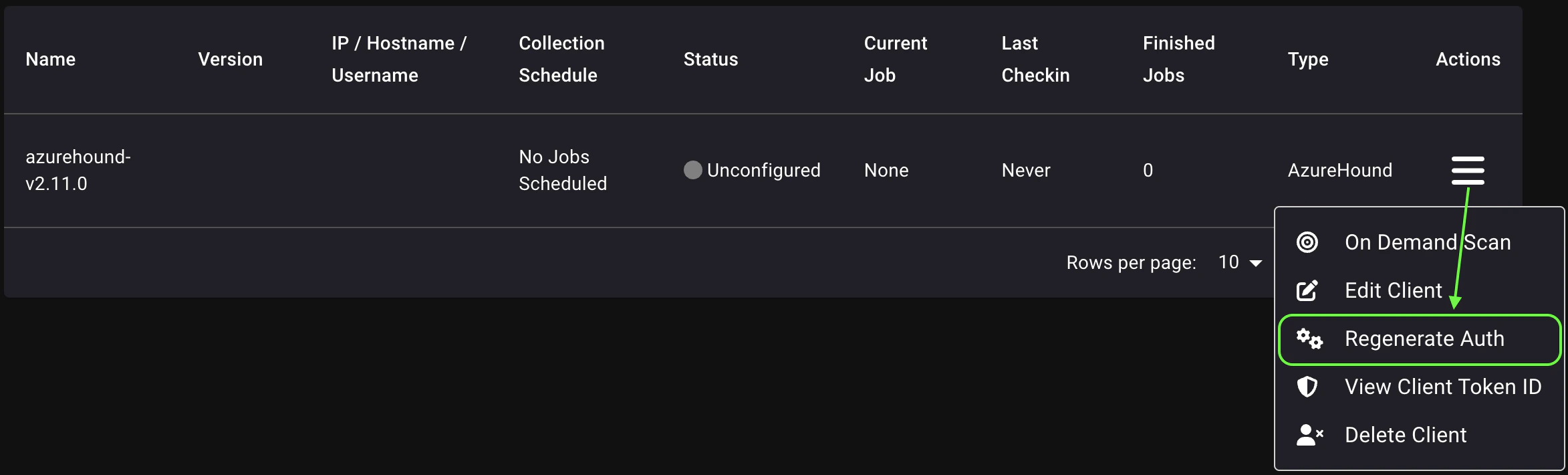
2. Click the hamburger menu and select **Regenerate Auth**.
3. Click **Create Token**, give it a descriptive name, and click **Save**.
4. Save the API token and token ID in a secure location (for example, a secrets manager or enterprise password vault) and click **Close**.
Do not store these values in cleartext files.
5. Update the dependent integration configuration with the new API token and token ID.
### Collector client API tokens
Administrators can rotate API tokens for collector clients from the **Manage Clients** page.
1. Log in to your BloodHound tenant as a user with the **Administrator** role.
2. In the left menu, click **Administration** > **Manage Clients**.
1. Find the collector client associated with the expiring API token.
2. Click the hamburger menu and select **Regenerate Auth**.
 3. Confirm the modal that appears, which explains that regenerating authentication invalidates the current client credentials.
4. Save the API token and token ID in a secure location (for example, a secrets manager or enterprise password vault). Do not store these values in cleartext files. Then click **Close**.
5. Update the dependent [AzureHound](/install-data-collector/install-azurehound/create-configuration), [SharpHound](/install-data-collector/install-sharphound/local-configuration#auth-json), or OpenHound configuration with the new API token and token ID.
3. Confirm the modal that appears, which explains that regenerating authentication invalidates the current client credentials.
4. Save the API token and token ID in a secure location (for example, a secrets manager or enterprise password vault). Do not store these values in cleartext files. Then click **Close**.
5. Update the dependent [AzureHound](/install-data-collector/install-azurehound/create-configuration), [SharpHound](/install-data-collector/install-sharphound/local-configuration#auth-json), or OpenHound configuration with the new API token and token ID.